Logs
Message Logs Guide — Reviewing Message Activity on Signal House
Understanding your message delivery and performance is crucial to ensuring high-quality communication and quick troubleshooting. Signal House’s Message Logs provide an in-depth, real-time view of your messaging activity—across all your numbers and campaigns.
Navigating to Message Logs
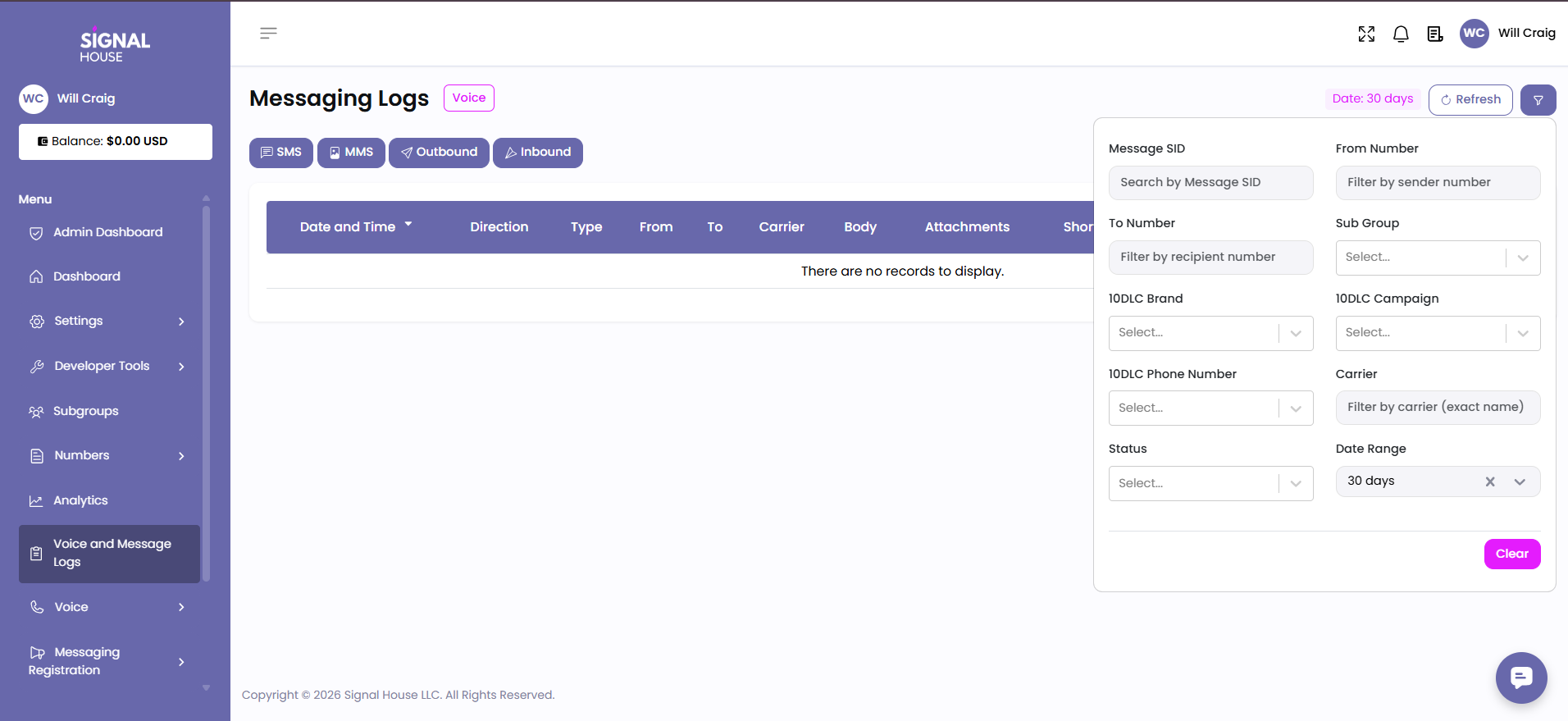
To access your message logs, click on “Message Logs” from the left-hand navigation panel of your Signal House dashboard.
Understanding the Log Columns
Each row in the Message Logs represents a message event—whether inbound or outbound. Here's what each column tells you:
Column | Description |
|---|---|
Date/Time | Timestamp of the message (formatted per your time zone in General Settings). |
Direction | Outbound (sent) or Inbound (received). |
Type | Type of message: SMS or MMS |
From / To | Sender and recipient numbers |
Body | Hover the 👁️ icon to preview message content |
Attachment | Shows if an image, file, or other media was attached to the message |
Short URL | Displays if a Signal House-tracked short URL was used in the message |
Click-Through Status | Indicates whether the recipient clicked the short URL (e.g., Clicked, Not Clicked) |
Segment | How many segments the message used |
Status | Message delivery status: Queued, Sent, Delivered, Failed, etc. |
Details | Click any row to see full metadata: Message SID, pricing, webhook URL, latency, and carrier response |
Filtering Your Logs
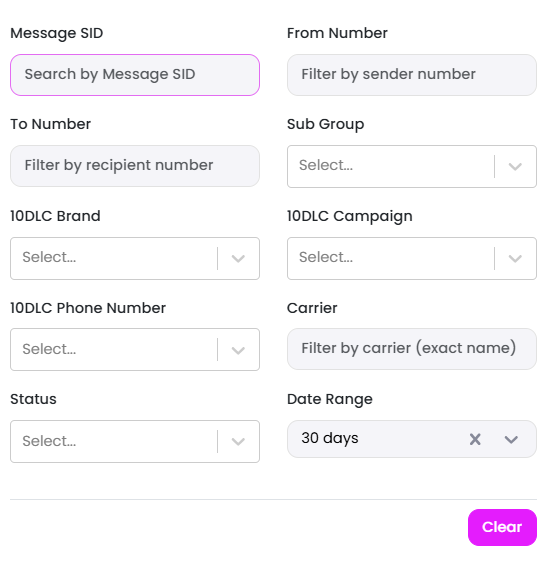
Use the Filter Panel in the top-right corner to refine your view by:
Date Range
Message Direction
Campaign
Brand
Sub Group
Delivery Status
You can also filter messages by whether they contain media attachments (MMS).
Click Tracking & Short URLs
If you use Signal House's URL shortening and tracking system:
The Short URL column will show a ✓ if a shortened link was included.
The Click-through Status column will show:
Clicked– if the recipient clicked the link.Not Clicked– if the link wasn’t clicked (yet).
This helps you measure message engagement and optimize content over time.
Accessing Message Metadata
Click on any message row to reveal detailed metadata:
Message SID (Signal House ID)
Segment pricing and delivery cost
Carrier response and status codes
Timestamps for each event
Webhook callback data
URL engagement summary (if applicable)
Pro Tips
Use filters to isolate failed messages by campaign or number.
Monitor click-throughs to identify high-performing messages or underperforming links.
Use segment counts to optimize SMS character usage and reduce cost.
Debug delivery issues with status messages + timestamps.
📦 Delivery Steps (Signal House)
When you open a message inside Message Logs → Details, you’ll see the Delivery Steps panel. This shows the exact journey your message took, timestamped in real-
time.
Step | What It Means |
|---|---|
Created | The message request was successfully generated inside Signal House. This confirms the system accepted the send action. |
Enqueued | The message has been added to the sending queue and is waiting for processing. This may happen when you send in bulk or during carrier throttling. |
Dequeued | The message has been pulled out of the queue and is now being processed for delivery. This is the “handoff prep” stage. |
Sent | Signal House has handed the message off to the carrier network (e.g., AT&T, Verizon, T-Mobile). At this point, the message has left our system. |
Delivered | The carrier confirmed the message reached the recipient’s device. This is the final confirmation. |
