
Signal House Voice
You don't need to be a telecom engineer (or even a "real" developer) to understand this. This guide explains what Signal House's Voice product does and how to use it, in plain language, with the actual code you'd copy-paste along the way. Anywhere a technical word shows up, we explain it first.
Quick glossary (read this first, it'll make everything else click)
API — a way for two pieces of software to talk to each other. Think of it like ordering at a restaurant counter: you ask for something specific, and the kitchen (Signal House) makes it and hands it back.
Endpoint — one specific "thing you can ask for" from that counter.
/voice/callsis the endpoint for "please make a phone call."Token / API key — a secret password that proves a request is really coming from you. Never share it publicly, the same way you wouldn't post your online banking password.
JSON — a simple, readable way to write data. It looks like this:
{ "name": "Alice" }. That's it — a label and a value, wrapped in curly braces.Webhook — Signal House "calling you" (metaphorically) to say "hey, something just happened — what should I do next?" Your website/app answers with instructions.
SIP — the technical wiring that phone systems use to send calls over the internet. You'll see this word a lot; you don't need to understand it deeply, just know it means "phone plumbing."
WebRTC — the technology that lets a phone call happen right inside a browser tab, with no app to download.
Phone number format (E.164) — the universal way to write a phone number so every computer understands it the same way: a
+, then the country code, then the number — e.g.+1 555 123 4567.SIP Trunk — think of it as a bulk phone line, like the shared line a business plugs its office phone system into.
Contents
1. What does Voice actually do?
2. Add calling to your website (browser calling)
3. Have your app make calls automatically (server-side)
4. Make the phone "smart" (call flows)
5. Going deeper: the full toolbox
1. What does Voice actually do?
Signal House's Voice product lets you add phone calling into whatever you're building — a website, an app, or a piece of software that needs to place or receive calls automatically. Everything runs through Signal House's servers, so you don't need to set up your own phone hardware.
There are two main ways people use it, and you'll probably only need one:
Path A — a phone built into your website. Someone visits your site, clicks "Call," and talks right there in the browser tab — no app, no phone number typed in. This is called "browser calling," and it's what most people picture when they imagine "click to call" on a website. Covered in Section 2.
Path B — your app makes or handles calls on its own. No person needs to click anything. Your code tells Signal House "call this number," or Signal House tells your code "someone's calling this number, here's what to do." This is what powers things like automated appointment reminders or a support line that answers calls automatically. Covered in Section 3.
2. Add calling to your website (browser calling)
Here's the whole flow, five steps, from nothing to a working phone call in a browser tab.
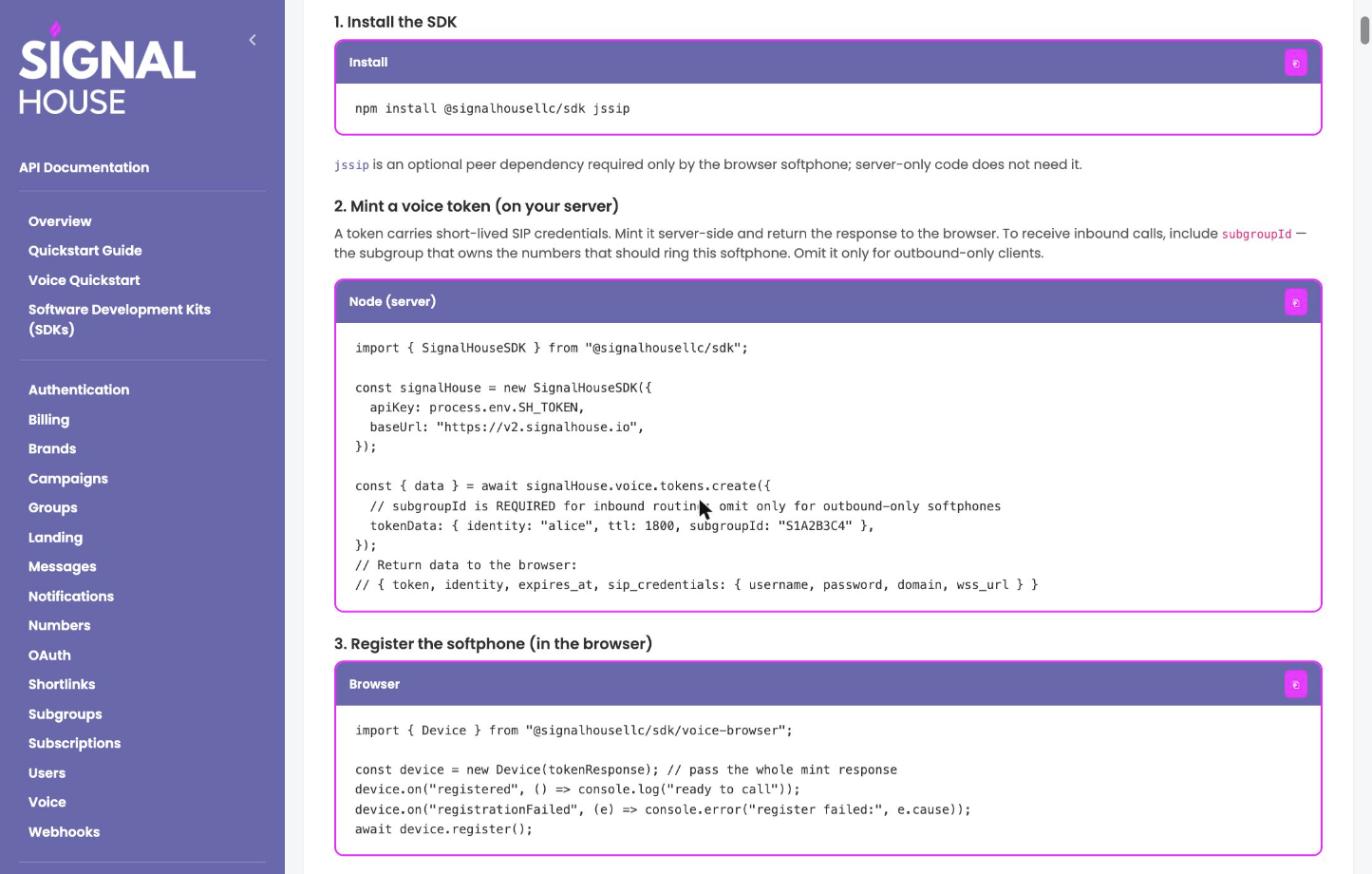
Step 1 — Add the toolkit to your project
This is a one-line command that downloads Signal House's code library (their "SDK") into your project, the same way you'd install any other package.
npm install @signalhousellc/sdk jssip(jssip is a helper library the browser phone needs — you don't have to do anything with it directly, just include it.)
Step 2 — Get a temporary access pass (on your server)
Before the browser can make a call, it needs permission. Your server asks Signal House for a short-lived "access pass" (called a token) and hands it to the browser. This keeps your real secret API key safely on your server, never exposed to visitors.
import { SignalHouseSDK } from "@signalhousellc/sdk";

const signalHouse = new SignalHouseSDK({
  apiKey: process.env.SH_TOKEN,       // your secret key, kept on the server
  baseUrl: "https://v2.signalhouse.io",
});

const { data } = await signalHouse.voice.tokens.create({
  tokenData: { identity: "alice", ttl: 1800, subgroupId: "S1A2B3C4" },
});
// Send "data" back down to the browser — it contains the temporary pass
If you want this website visitor to be able to receive calls too (not just make them), include subgroupId — think of it as "which phone line this person is answering for." If they'll only ever make outgoing calls, you can leave it out.
Step 3 — Turn the browser tab into a phone
This takes the access pass from Step 2 and "wakes up" a phone inside the browser.
import { Device } from "@signalhousellc/sdk/voice-browser";

const device = new Device(tokenResponse); // the whole thing you got back in Step 2
device.on("registered", () => console.log("ready to call"));
await device.register();
Step 4 — Actually make the call
const call = await device.connect({ to: "+15551234567", from: "+19153374770" });

call.on("accepted", () => console.log("they picked up!"));
call.on("ended", () => console.log("call's over"));
Step 5 — The buttons you'd expect on any phone
call.mute();                              // turn off your mic
call.hold();                              // put them on hold
call.sendDigits("1");                     // press a number, like navigating a phone menu
call.transfer("+15559876543");            // send the call to someone else
call.hangup();                            // end the call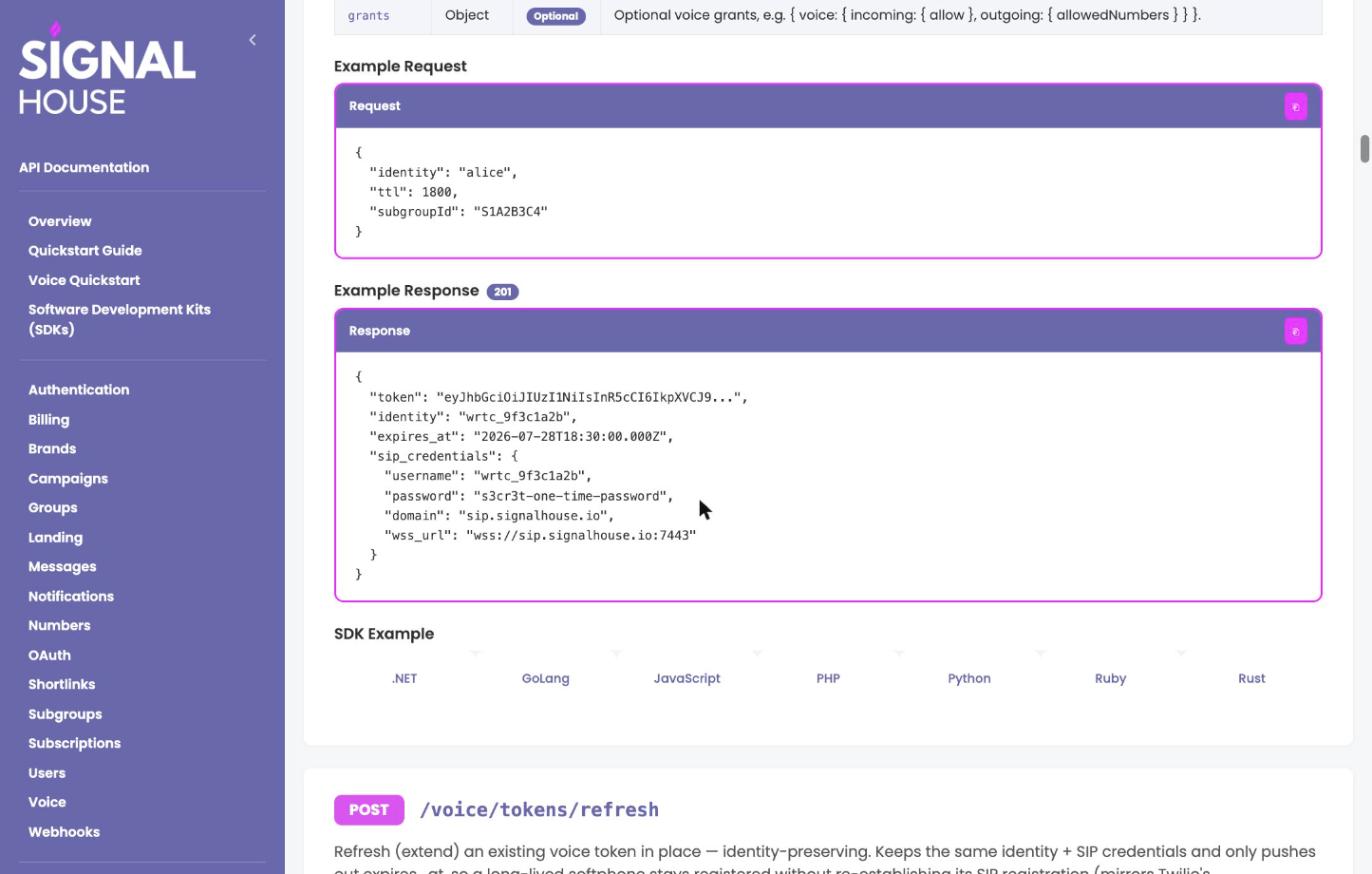
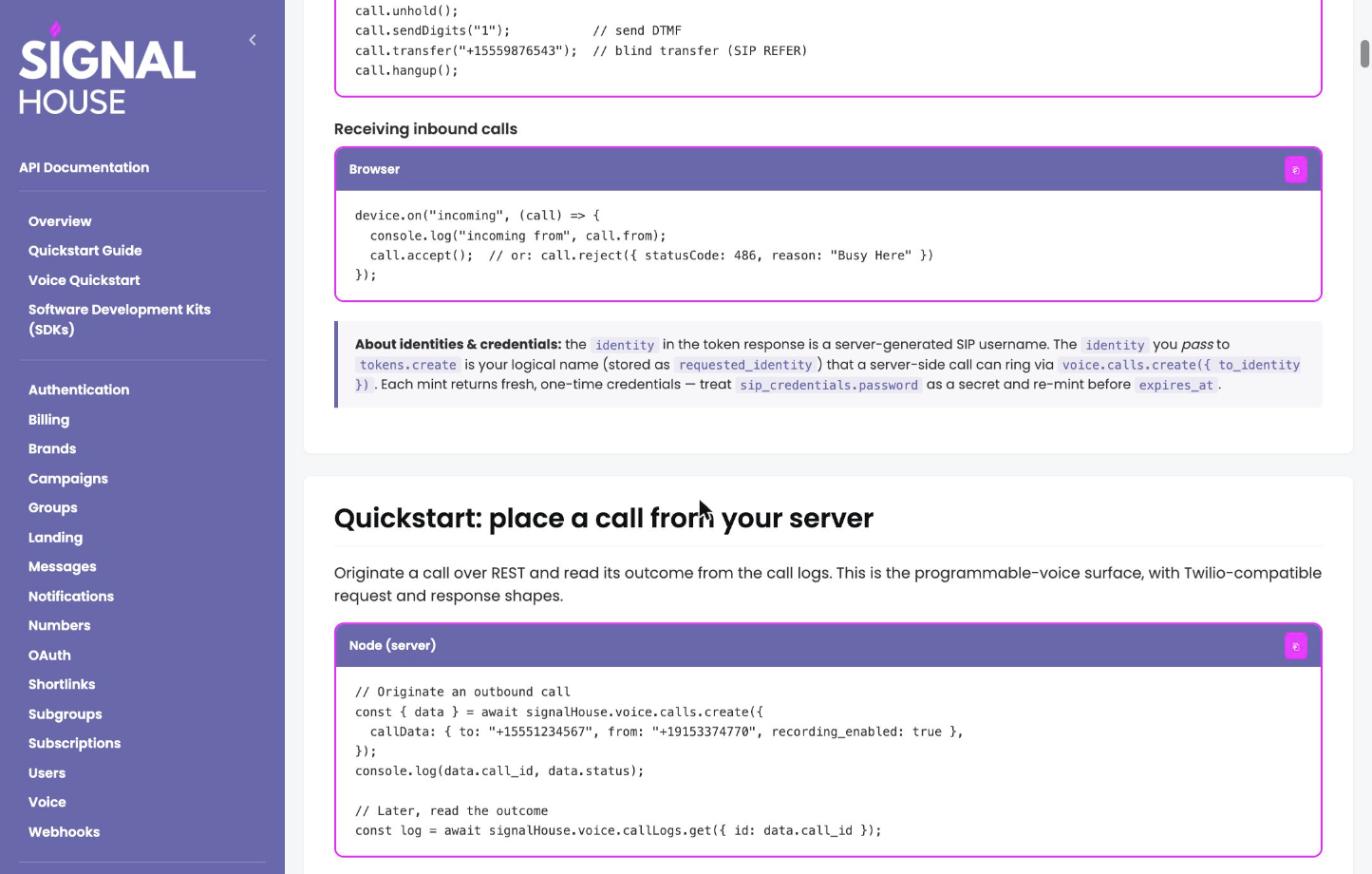
Bonus: answering calls that come in
device.on("incoming", (call) => {
  console.log("someone's calling:", call.from);
  call.accept();   // pick up
  // or: call.reject({ statusCode: 486, reason: "Busy Here" })
});
A note on the "access pass": each one is single-use and expires after a while (you set how long, in seconds, with ttl). Treat the password inside it like you would any other password — don't log it or show it on screen, and just ask for a fresh one when the old one runs out.
3. Have your app make calls automatically (server-side)
No browser needed here — this is just your backend code telling Signal House "place this call," and later checking "how did it go?"
// Place the call
const { data } = await signalHouse.voice.calls.create({
  callData: { to: "+15551234567", from: "+19153374770", recording_enabled: true },
});
console.log(data.call_id, data.status);

// Check on it afterward
const log = await signalHouse.voice.callLogs.get({ id: data.call_id });
That's genuinely most of what this path involves day-to-day: start a call, look up what happened. Everything else in this guide builds on top of these two ideas.
4. Make the phone "smart" (call flows)
This is the part that lets you build things like "press 1 for sales, press 2 for support," automated voicemail, or call recording — without a person sitting there routing calls.
Here's the idea in one sentence: when a call happens, Signal House asks your website "what should happen now?" and your website answers with a simple script. That script is written in something called SHML, which is just a handful of plain XML-style tags — if you've ever used HTML, this will feel familiar. (If you've used a similar product called Twilio before, this works the same way on purpose, so switching over is easy.)
There are two situations where this kicks in:
Someone calls one of your numbers (inbound). You tell Signal House "whenever this number rings, ask my website what to do." You set this up once, and it applies automatically after that.
// 1. Tell Signal House to ask your website for instructions
const { data: created } = await signalHouse.voice.programmableVoiceProfiles.create({
  profileData: {
    name: "My call app",
    subgroupIds: ["S1A2B3C4"],
    routeAction: "CALL_CONTROL",
    webhookUrl: "https://example.com/voice/inbound",   // your website's address for this
  },
});

// 2. Point one of your phone numbers at it
await signalHouse.voice.programmableVoiceProfiles.assignNumber({
  id: created.profile.id,
  e164: "+19153374770",
});
Your app places a call and wants to control it (outbound). Same idea, just triggered by your own code instead of an incoming call.
const { data } = await signalHouse.voice.calls.create({
  callData: {
    to: "+15551234567",
    from: "+19153374770",
    answer_url: "https://example.com/voice/outbound",  // your website's address for this
  },
});
What Signal House tells your website
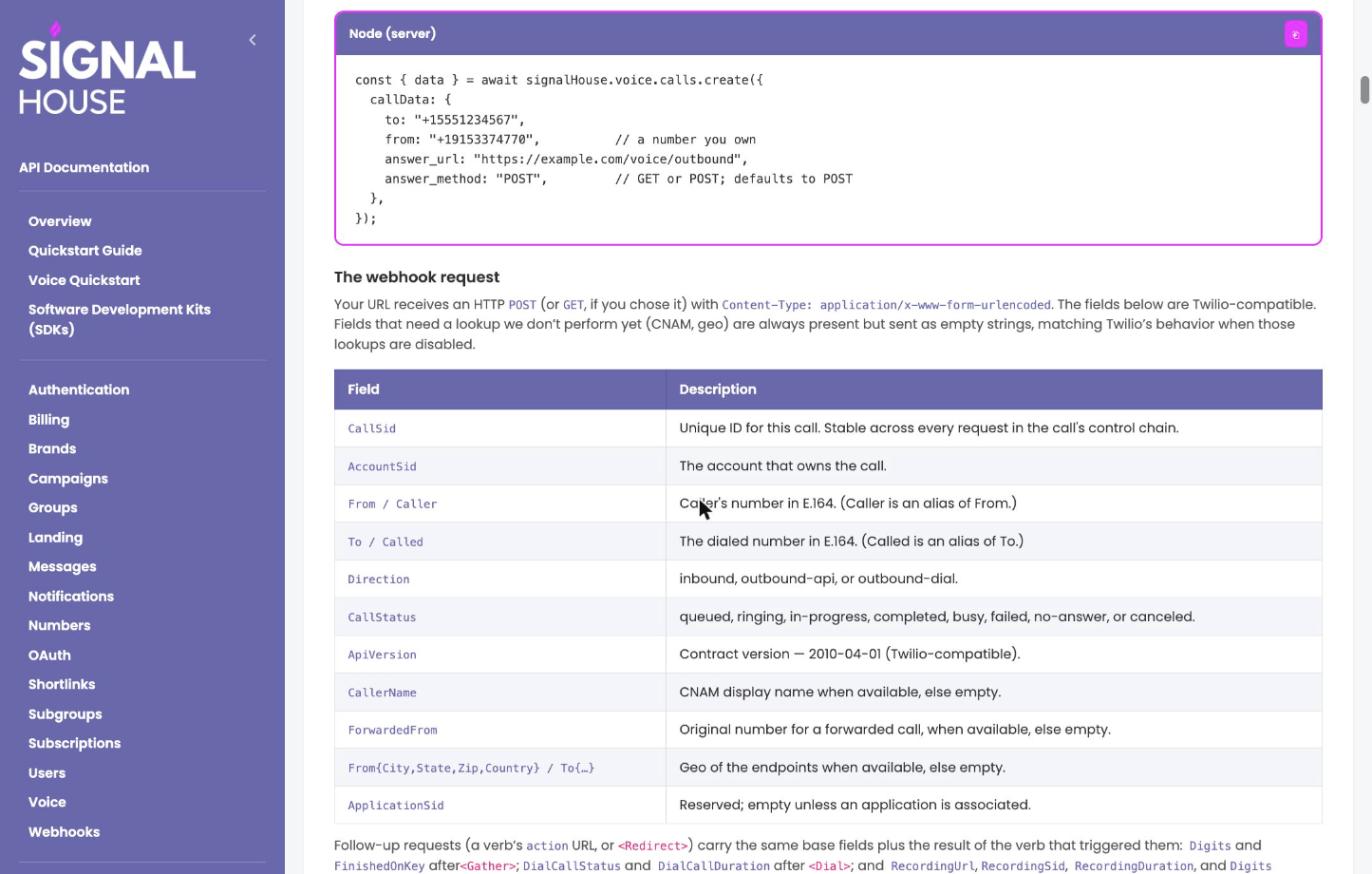
When Signal House "asks your website what to do," it sends over some basic facts about the call as a normal web request — nothing exotic, just labeled info like a form submission:
What you get | In plain terms |
|---|---|
| A unique ID for this call, so you can keep track of it through the whole conversation. |
| Who's calling, and who they're calling. |
| Whether this call is coming in or going out. |
| Where things stand right now — ringing, answered, busy, and so on. |
| The caller's name, if that information is available (often blank). |
If your instructions included "wait for the caller to press a button" or "record them," you'll also get back what they pressed, or a link to the recording, on the next request.
What you tell it back
Your website answers with a short script. Here's a simple one — say something, pause a second, then play a music file:
<?xml version="1.0" encoding="UTF-8"?>
<Response>
  <Say voice="alice">Thanks for calling. Please hold.</Say>
  <Pause length="1"/>
  <Play>https://example.com/audio/hold.mp3</Play>
</Response>
Signal House reads it top to bottom and does exactly what it says. If the script ends without saying otherwise, the call simply ends.
The full list of "commands" you can use
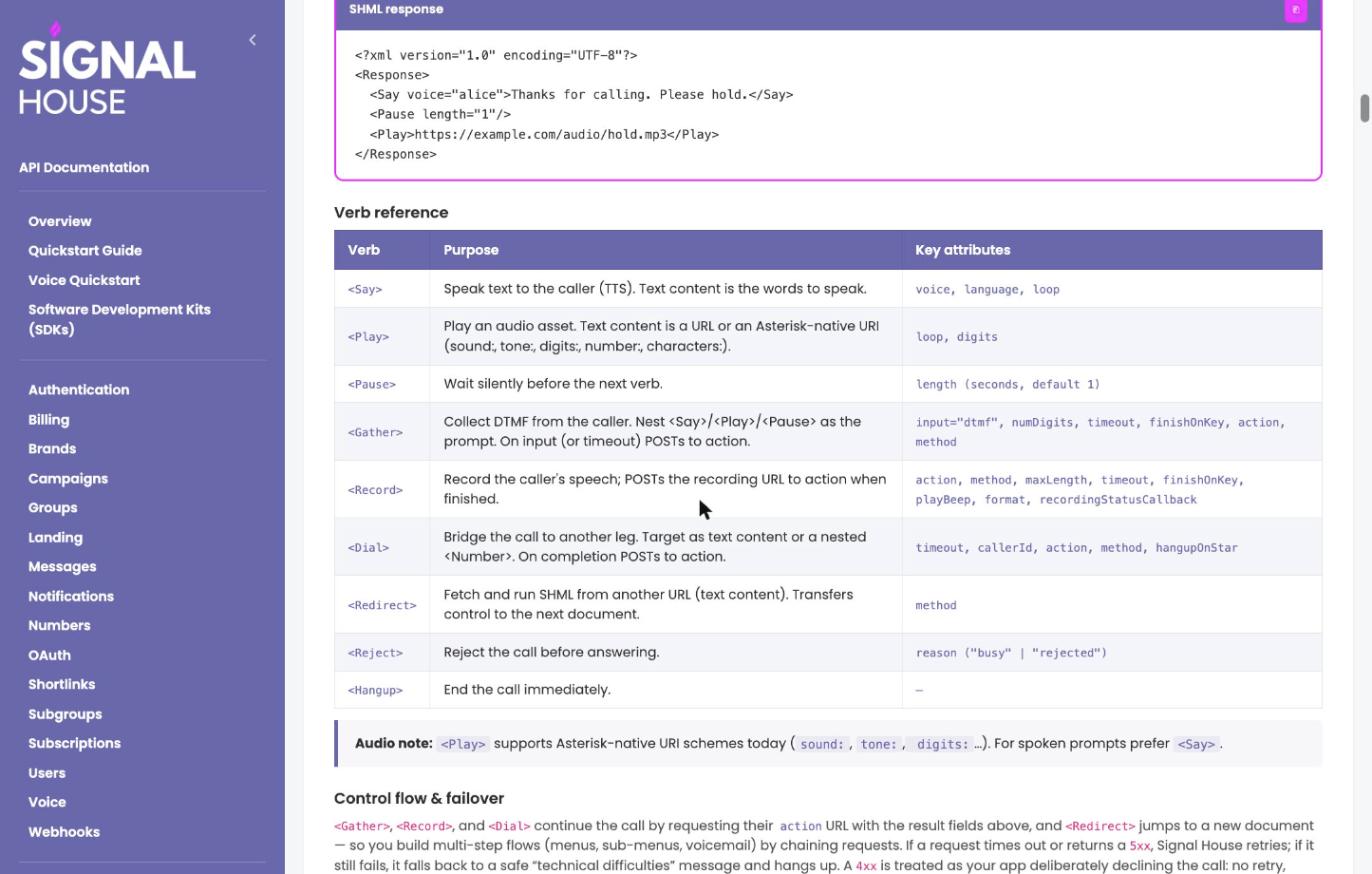
Command | What it does, in plain terms |
|---|---|
| Reads text out loud to the caller (text-to-speech). |
| Plays an audio file or sound. |
| Waits silently for a moment. |
| Waits for the caller to press buttons on their keypad, then tells your website what they pressed. |
| Records what the caller says, then sends your website a link to the recording. |
| Connects the call to another phone number (a transfer). |
| Hands off to a different set of instructions — useful for multi-step menus. |
| Declines the call before it's even answered. |
| Ends the call right now. |
What if my website is slow or down? Signal House retries automatically. If it still can't reach you, callers hear a polite "we're having technical difficulties" message instead of dead air.
How do I know a request really came from Signal House and not an impostor? Every request can be digitally "signed" so your website can double-check it's legitimate — similar to a wax seal on a letter proving who really sent it. This is optional but recommended to turn on.
A real example: "Press 1 for sales, press 2 for support"
This is the classic phone menu everyone's called before. Here's exactly how simple it is under the hood.
What the caller hears first:
<?xml version="1.0" encoding="UTF-8"?>
<Response>
  <Gather numDigits="1" timeout="8" action="https://example.com/voice/menu" method="POST">
    <Say>For sales, press 1. For support, press 2.</Say>
  </Gather>
  <Say>We didn't get your selection. Goodbye.</Say>
  <Hangup/>
</Response>
If they press 1, your website answers with:
<?xml version="1.0" encoding="UTF-8"?>
<Response>
  <Say>Connecting you to sales.</Say>
  <Dial callerId="+19153374770" timeout="30">
    <Number>+15551234567</Number>
  </Dial>
</Response>
That's a complete, working phone menu in about ten lines.
5. Going deeper: the full toolbox
Everything below is here for completeness — think of it as the rest of the "menu" beyond the basics above. You likely won't need most of it unless you're building something more advanced, like connecting an existing office phone system or pulling detailed call reports.
5.1 Temporary access passes (Tokens)
This is Step 2 from Section 2, spelled out fully — how your server hands out those short-lived "passes" that let a browser tab become a phone.
Get a new pass — POST /voice/tokens
Setting | Do I need it? | What it means |
|---|---|---|
| Optional | A name for this person's phone session, like |
| Optional | How many seconds the pass stays valid before it expires. |
| Needed only if this person should receive calls | Which phone number(s) should ring this person's browser tab. |
| Optional | Fine-grained permissions, like "can only call these specific numbers." |
You get back something like this (the password is shown only this once, so save it):
{
  "token": "eyJhbGciOiJIUzI1NiIsInR5cCI6IkpXVCJ9...",
  "identity": "wrtc_9f3c1a2b",
  "expires_at": "2026-07-28T18:30:00.000Z",
  "sip_credentials": {
    "username": "wrtc_9f3c1a2b",
    "password": "s3cr3t-one-time-password",
    "domain": "sip.signalhouse.io",
    "wss_url": "wss://sip.signalhouse.io:7443"
  }
}
Extend a pass instead of getting a new one — POST /voice/tokens/refresh. Useful for someone who's been on the browser phone a long time and is about to time out — this keeps them connected without hanging up and reconnecting.
5.2 Making, checking, and ending calls
Start a call —
POST /voice/v1/calls. The only must-haves areto(who you're calling) andfrom(the number you're calling from, which must be a number you own). Everything else — recording, transcription, routing options — is optional.See your call history (simple version) —
GET /voice/v1/calls. Supports filtering by status, direction, date, and which numbers were involved.Look up one specific call —
GET /voice/v1/calls/:call_id.Hang up a call that's in progress —
POST /voice/v1/calls/:call_id/hangup.
5.3 Call history (Call Logs)
This is the more detailed version of call history — the one you'd use to build a "recent calls" screen or run reports. It supports a lot of filters: by direction, status, whether it was voicemail, whether it has a recording, even a general search box (q) and a rating of whether the call "felt" positive or negative (sentiment).
List calls with filters —
GET /voice/api/v1/call-logsLook up one call —
GET /voice/api/v1/call-logs/:idGet a link to listen to the recording —
GET /voice/api/v1/call-logs/:id/recording(the link expires after a few minutes, for privacy)Mark a voicemail as read/unread —
PATCH /voice/api/v1/call-logs/:id/voicemail-read
5.4 Call stats (Analytics)
GET /voice/stats/voice-analytics gives you the big-picture numbers: how many calls came in vs. went out, what percentage were answered, average call length, and trends over time (by day, week, or month). This is what you'd use to build a dashboard rather than looking at individual calls.
5.5 Connecting an existing phone system (SIP Trunks)
This one's for a specific situation: you already have an office phone system (a PBX) and want to connect it to Signal House, instead of using Signal House's calling features directly. A "trunk" is that connection — like plugging your existing phone system into Signal House's network as a bulk phone line.
What you can do | Endpoint |
|---|---|
See all your trunks |
|
See where trunks can be hosted |
|
Look at one trunk |
|
Create a trunk |
|
Change a trunk's settings |
|
Turn a trunk on/off |
|
Get a new password for it |
|
Point phone numbers at it |
|
Remove phone numbers from it |
|
Delete it |
|
When creating one, the main decision is how it proves it's really you: either by only accepting connections from specific internet addresses you list (IP_AUTH), or by logging in with a username and password (REGISTRATION). Unless you already know you need this, you probably don't — it's aimed at businesses with existing phone hardware.
5.6 Setting up a phone line for one device (SIP Profiles)
Similar idea to a trunk, but for a single device or desk phone rather than a whole office system — like giving one specific phone (say, a physical desk phone or a PBX extension) its own login to Signal House.
What you can do | Endpoint |
|---|---|
See all profiles |
|
See connection options |
|
Look at one profile |
|
Get its password |
|
Create one |
|
Change its settings |
|
Point a phone number at it |
|
Remove a phone number from it |
|
Delete it |
|
5.7 Deciding what happens when someone calls a number (Programmable Voice Profiles)
This is the "traffic controller" for your phone numbers. For each number, you decide: should it forward to another phone, ring a browser phone, go to a connected office system, or hand off to your own website's instructions (the "call flows" from Section 4)? A "profile" is just a saved version of that decision that you can apply to one or more numbers at once.
What you can do | Endpoint |
|---|---|
See all profiles |
|
Look at one |
|
Create one |
|
Change its settings |
|
Turn it on/off |
|
Add a phone number to it |
|
Remove a phone number from it |
|
Delete it |
|
When you create one, the main choice is what it does: FORWARD (ring another number), WEBRTC (ring a browser phone), SIP_TRUNK / SIP_PROFILE (send it to your connected office system), or CALL_CONTROL (hand it to your website's script, as in Section 4).
5.8 Account-wide call settings (Global Voice Settings)
A small set of defaults that apply to every call on your account unless something more specific overrides them — which countries you're allowed to call, a cap on how much you're willing to spend per minute, and whether emergency-calling (E911) is turned on by default.
See current settings —
GET /voice/api/v1/global-voice-settingsChange them —
PUT /voice/api/v1/global-voice-settings(you only need to send the settings you want to change — anything you leave out stays the same)
Need to Chat?
Questions about your current rates or want to review pricing?
Contact Support or reach out to your account manager. We’re here to make sure your pricing works for you.